
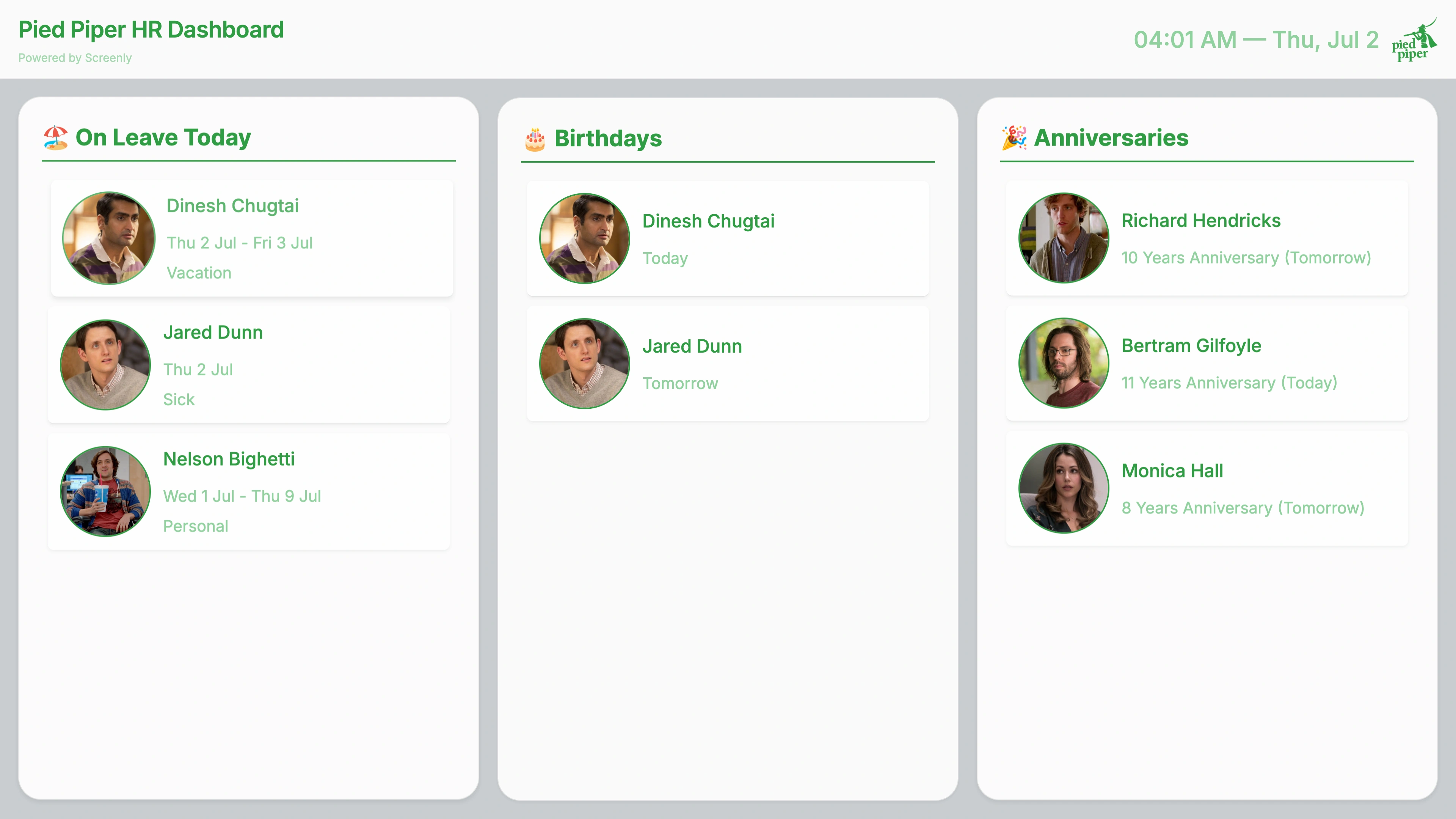
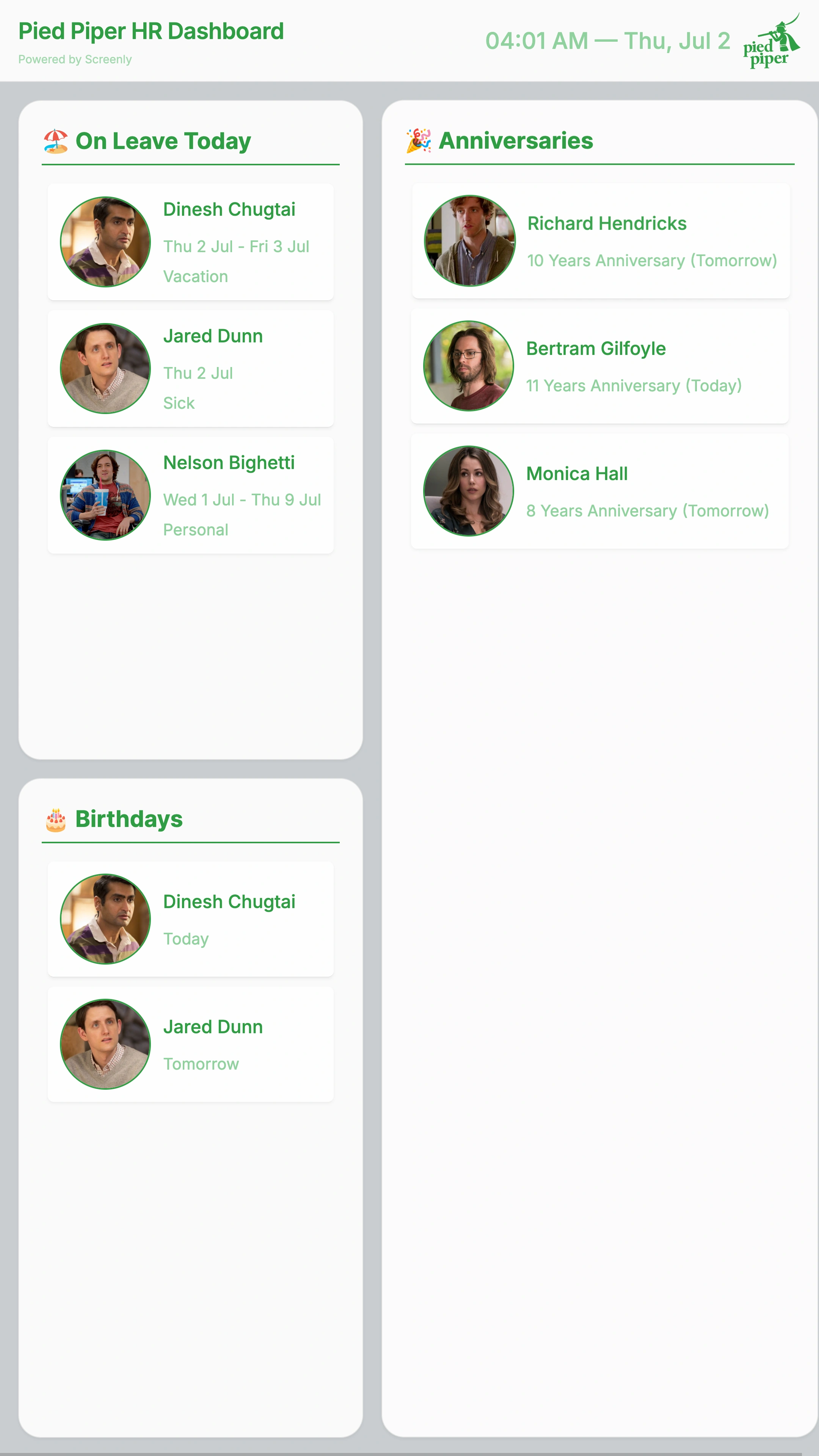
A digital signage dashboard, custom-made by Screenly, that displays employee information from CharlieHR, including birthdays, work anniversaries, and current leave status. Perfect for office displays and team spaces. Learn more about the Screenly CharlieHR Dashboard App’s key features below.
CharlieHR Dashboard App
The CharlieHR Dashboard App is a plug-and-play digital signage solution designed to showcase real-time employee information from your CharlieHR account. Whether you’re celebrating birthdays, work anniversaries, or tracking who’s out of office today, this dashboard keeps your team connected and informed, right from your digital signage screens.
Celebrate Birthdays and Work Anniversaries
Never miss a milestone again. The dashboard automatically displays employee birthdays and work anniversaries, bringing joy and appreciation into your workplace environment.
Track Who’s Away in Real-Time
Stay in sync with your team’s availability. The app displays a real-time list of employees currently on leave, helping everyone stay informed and plan better.
Localized for Your Team, Wherever They Are
With built-in support for automatic timezone and locale detection, the dashboard ensures that all dates and times are relevant to your display’s location, ideal for distributed or global teams.
Seamlessly Match Your Brand
The dashboard automatically adapts to your company’s brand identity by pulling your logo and colors from your Screenly brand settings, ensuring a consistent and professional look.
How to use the CharlieHR Dashboard App

- Go to the CharlieHR Dashboard App
- Give a name for the app and enter your CharlieHR Client ID and a Client Secret
- Click ‘Install’.
- Add the app to your playlist.
- Assign the playlist to your screen.
How to get your CharlieHR API Client ID and Secret

- Open CharlieHR and expand ‘Company’ from the side navigation
- Click on ‘Integrations’
- Click on the tab ‘API Access’
- Navigate to the box on the right, with the headline ‘Your API Keys’
- Follow the instructions and Generate the Keys. You will be provided with a Client ID and a Client Secret
- Copy the Client ID and the Client Secret somewhere safe
- Once you have the keys, head over to the other app and enter the Client ID and Client Secret.